

Projects, templates and packages
A project is the scope of one configuration and of the content it describes. Item types, relationship types, lifecycles, roles, permission cells, page layouts and AI actions all belong to a project, so two projects in one tenant can model different products. Items, branches and baselines belong to one project.
Creating a project
Section titled “Creating a project”A project is created from a name, a key and an optional description. The key is 2 to 20 characters, starting with a letter and holding uppercase letters, digits and hyphens; it prefixes item numbers, appears in URLs and is fixed once the project exists. Avera creates the main branch, the default lifecycle with the permission cells that make it usable and the default role catalog, and grants the creator project administrator.
It carries no meta-model of your own: no item types, no relationship types, no layouts. A project therefore starts from a template package.
What a template package carries
Section titled “What a template package carries”A package is a portable JSON document: a manifest (package id, semantic version, name, description, content checksum) and a payload split into configuration and content. Configuration travels by slug, not database id, so it lands in any tenant: categories, item types, attribute definitions and their per-type assignments, relationship types, lifecycles with their states and transitions, the permission cells scoped to those lifecycles, the roles those cells name, page layouts and AI actions. Content is the project’s items, their attribute values, links, document content and recorded responses, at current versions.
The device development package carries 123 item types, 110 relationship types, 15 lifecycles, 45 roles, several thousand permission cells, 33 layouts and 30 AI actions, with roughly 800 items and 32 documents as starting content. The quality management package carries 39 item types, 17 lifecycles, 24 layouts and over 900 items, a regulatory clause library among them.
Everything a package brings is then ordinary project configuration, edited through the change request pipeline: see the meta-model, lifecycles and layouts.
Project settings
Section titled “Project settings”Item numbering. You set the separator, the number of sequence digits, and whether each item type counts on its own sequence or all share one. Per-type prefixes live on the item type.
| Numbering scheme | Renders, with a - separator and four sequence digits |
|---|---|
| Type only | DI-0001 |
| Project prefix | DEX-DI-0001, from the project prefix you set beside it |
| Custom pattern | whatever your pattern renders: {project}/{type}/{seq} gives DEX/DI/0001 |
Numbers are issued from the project’s ledger rather than counted, so an issued number is never reissued and a deleted item does not release its number.
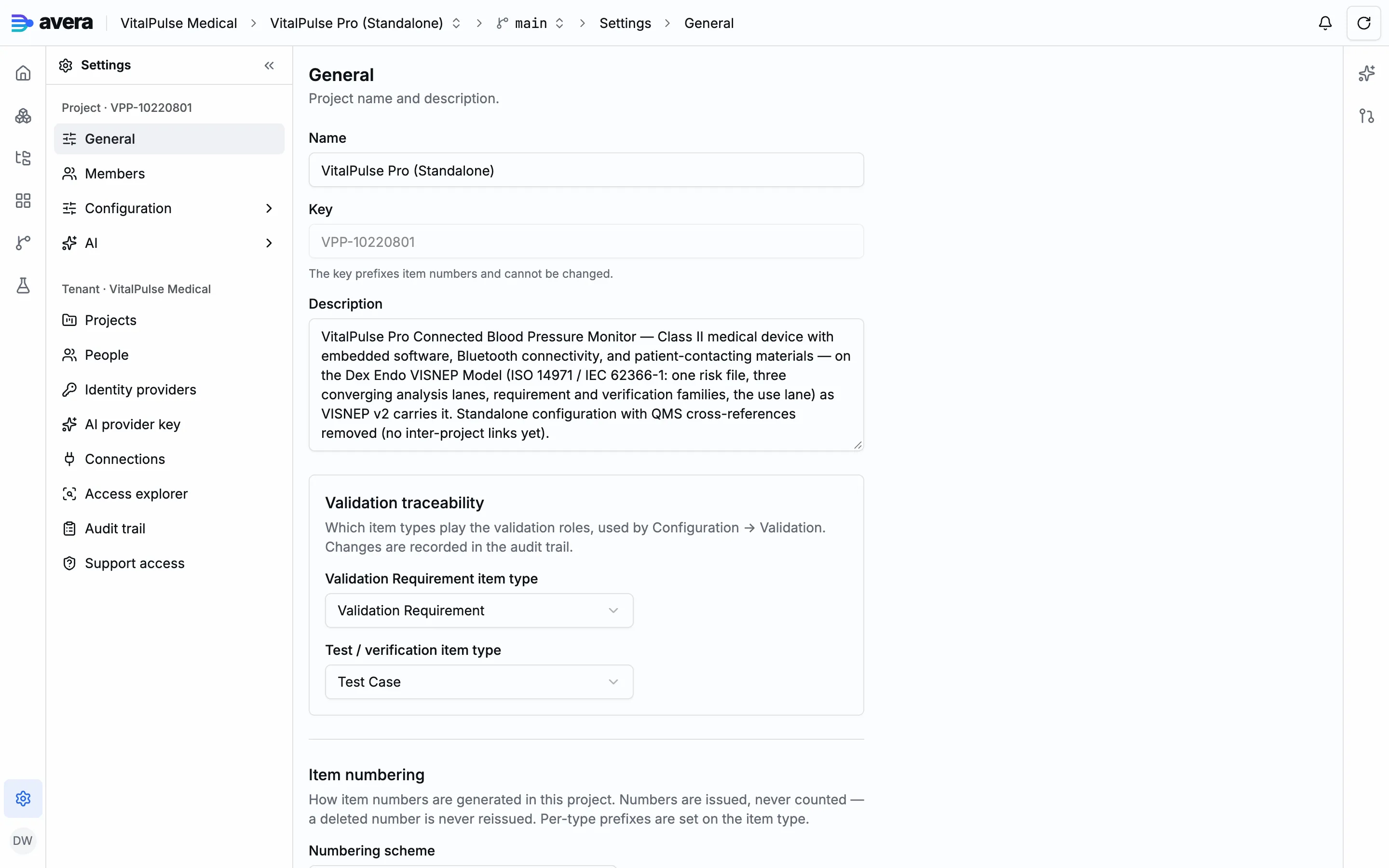
Documents. Heading numbering can be switched on for every document in the project: 1, 1.1, 1.2, 2 and so on.
Validation traceability. Two item types are nominated: the one whose items are validation requirements, and the one whose items verify them. The validation surfaces read that pair and show an unconfigured state rather than guessing. See validation.
AI defaults and conventions. You pick the default model AI actions use unless an action pins its own, and write the project’s AI conventions: your team’s terminology, house style and prior decisions, as markdown up to 20,000 characters. They are rendered into the system prompt, so in-app chat and agents on the connector answer in your vocabulary.
Exporting and importing
Section titled “Exporting and importing”Exporting a project writes a package file: you choose the package id and semantic version, and the JSON download imports into another tenant or deployment. What it leaves behind:
| Left behind | Note |
|---|---|
| Version history | Current versions only |
| Attachments and their file content | |
| The project’s default lifecycle | Its items travel by status; lifecycles you authored travel with their states, cells and roles |
| Electronic signatures and endorsements | |
Branches, baselines and commits other than the current main |
|
| The project settings above | Numbering, heading numbering, the validation pair, AI defaults and conventions |
On import, the name and description come from the manifest and you choose the key. The configuration is verified first: duplicate slugs, invalid enum values and dangling references, such as a relationship type naming an item type the package lacks, are rejected rather than half-applied. It then routes through the change request pipeline, where a new project’s creates promote on their own and leave a configuration version and a verification log as evidence; content is recreated afterwards with fresh ids. The template-update route applies a package’s configuration to an existing project: each element becomes a create or a modify, verified at promotion. See configuration changes.
Branches and baselines
Section titled “Branches and baselines”A branch is a parallel line of work in one project, cut from its source’s current head and materialising nothing: reads resolve through its lineage, so it sees the source as it stood at the branch point until its own commits diverge. Its key is derived from the name once and never revised, so a link citing a branch keeps resolving across renames. Every write lands at a seq on the project’s timeline, and a baseline is a watermark on it: a point named, not a copy.
Membership and access
Section titled “Membership and access”Project membership, roles and what each role may do are in people and access, the identity side in single sign-on. Archiving a project makes it read-only and removes it from the project switcher; nothing is deleted and it can be restored.
A worked example
Section titled “A worked example”Starting a project from a package, then settling how its items are numbered.
- Open Projects in the tenant part of settings and press Import package.
- Drop the package file on the dialog, or press “Choose a package file”. It reads the manifest and shows the package’s name, id, version, item-type count and item count.
- Type the project Key, which cannot be changed later.
- Press Import project. The project appears in the Active list with Open, Settings and Export beside it.
- In Settings → General, find Item numbering. For numbers that read
DI-0001, set Numbering scheme to “Type only (DI-0001)”, leave Separator as-and Sequence digits at 4, and keep “Separate sequence per item type” ticked. The Example line renders the result as you change it. - Press Save changes. New items carry the new shape: the number leads an item’s page and fills the ID column of the Items lens.
To author a meta-model yourself, press New project and give it a Name, Key and Description. It arrives with no item types of its own.