

People, roles and access
Access in Avera is deny by default: nobody edits an item, authors a trace link, records a response or fires a lifecycle transition unless some rule says they may, and every such rule is an ALLOW, with no DENY rows. A person’s effective access is the union of the rules naming the roles they hold.
Reading is the one exception: structural, not granted, so a member of a project sees the project’s items.
A role is a named principal: what it may do lives in the permission register, so the role carries only an identifier, a name and a description. Each project has its own catalog, seeded at creation with six defaults, in which a project administrator can add, rename and delete roles. Deleting a role stages the deletion of the cells naming it, and promotion is blocked while it is still granted or referenced.
Roles are project-scoped: the same person can hold different roles in different projects.
Granting a role to a person
Section titled “Granting a role to a person”A grant binds one person to one or more roles on one project, with two options:
- Item-type scope. With no scope the grant covers the whole project; scoped to a single item type, the roles apply only to items of that type.
- Expiry. A grant can carry an end date, after which it confers nothing.
A person can hold several grants on one project, one at project scope and others per item type, each revoked separately, so check for both when removing access. Grants are managed on a project’s Members page.
Permission cells
Section titled “Permission cells”A cell is one sentence: this role may do this verb, here. It names one role, one verb from a closed list, and the coordinate that verb is governed by:
| Verb | What it governs | Coordinate |
|---|---|---|
| Item: Create | Creating an item | The initial state |
| Item: Edit | Unrestricted attributes and the document content | One state |
| Item: Delete | Deleting an item | One state |
| Attribute: Edit | One restricted field | A state and a field |
| Relationship: Create, Relationship: Delete | Trace links of one relationship type | A state and a relationship type |
| Comment: Create, Comment: Edit own, Comment: Delete own | Discussion on an item | One state |
| Response: Record | Responses on a test execution | One state |
| Fire a transition | One lifecycle move | One transition |
| Project: Administer | Configuration and promotion | None |
| Review queue: Read | Another member’s work queue | None |
A relationship type no cell names stays on Item: Edit alone.
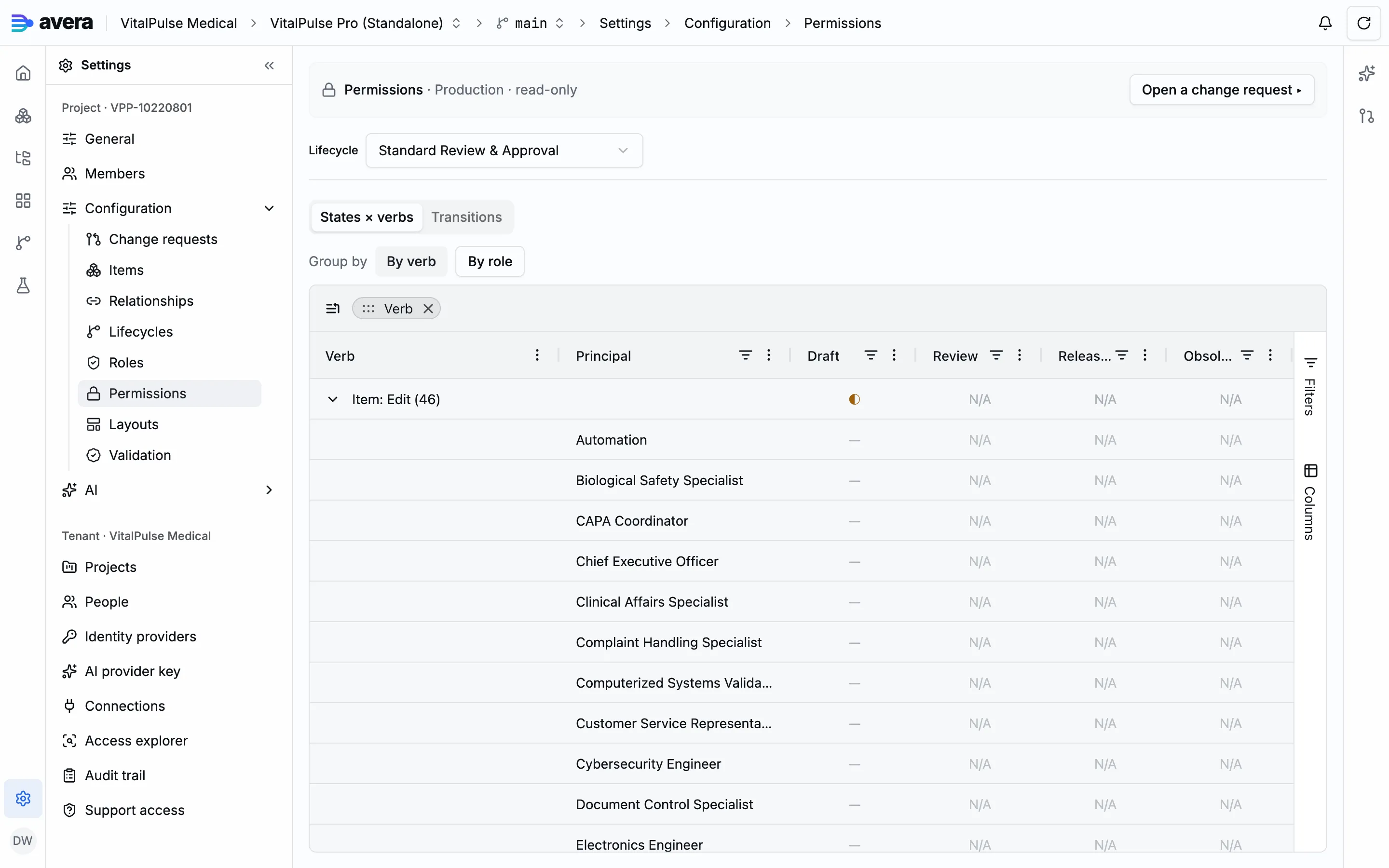
Cells are authored on the lifecycle rather than on the item type, so access travels with the state machine and every item type bound to a lifecycle inherits its cells. The Permissions page is the register’s whole-book view, and the role catalog and the cells stage into a change request that records the sentences that changed.
Restricted attributes and field-level edit
Section titled “Restricted attributes and field-level edit”You mark an attribute as restricted on the item type’s attribute assignment, which declares that the ordinary item edit permission no longer suffices, then grant cells for the restricted-field verb to the roles that may write it.
Restriction is edit-only: there is no field-level visibility, because hiding a value would leak into grids, formulas, search and export. Because cells come from the lifecycle, a type carrying a restricted field must be the only type on its lifecycle; the item type’s own surface offers to move it onto a dedicated one.
The access explorer
Section titled “The access explorer”For a chosen verb the access explorer renders the role by state matrix with the reason behind each cell. Pick a member and the matrix collapses to the row the live evaluator produces for them, the same evaluator that enforces access. Using “View as” is recorded in the audit trail against the person you viewed as.
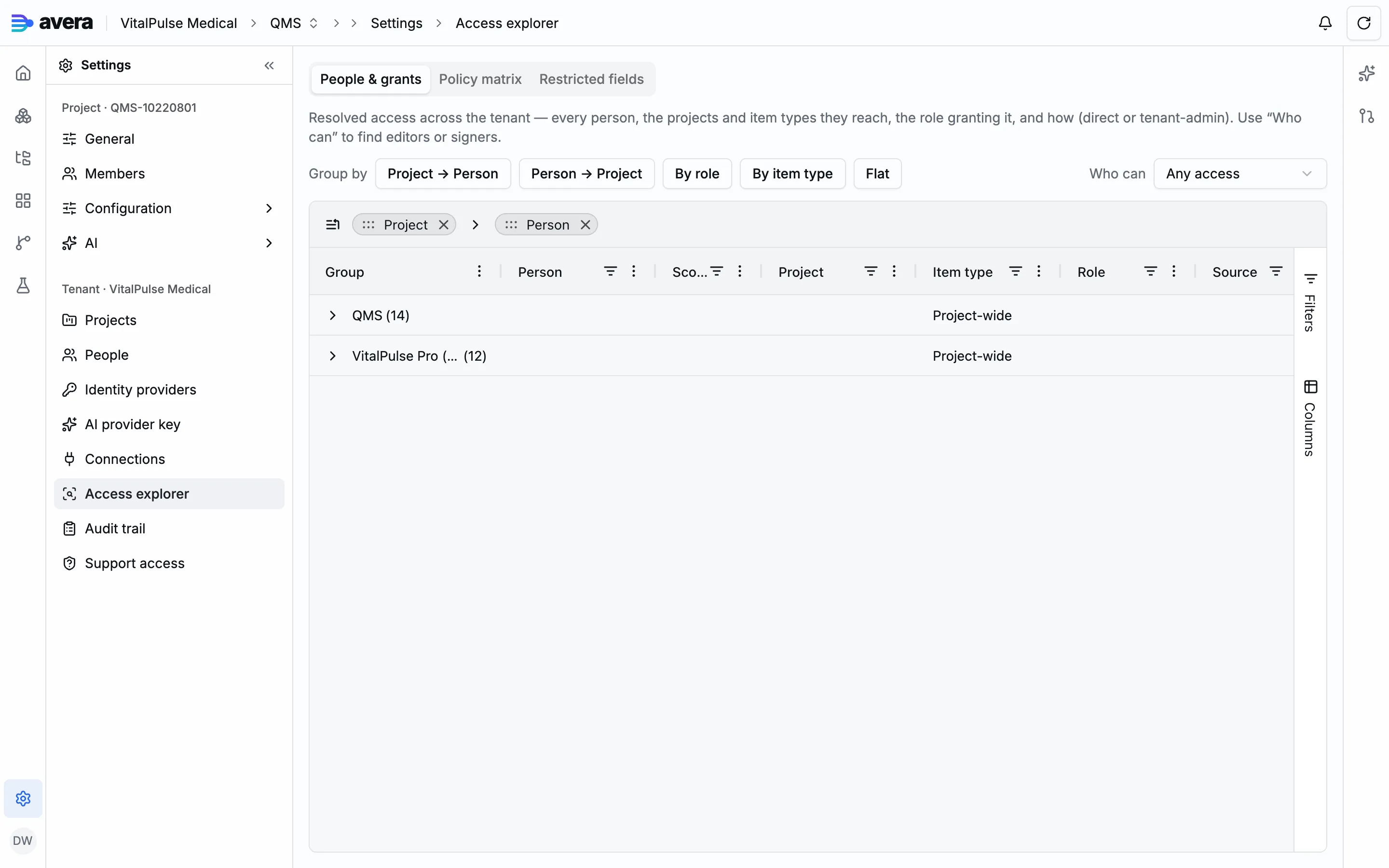
An item-level read answers who can do what to one item on the branch you are on, and each person can see their own access, including what is denied and why.
Tenant participation and project membership
Section titled “Tenant participation and project membership”Confusing these two layers is the usual cause of “they have a role but cannot see anything”. A tenant participation, managed on the People page, admits a person to the tenant: internal for your own people, external and time-bounded for collaborators from another organisation, carrying tenant-level roles of tenant owner, tenant administrator, user administrator or plain member. Those roles govern tenant administration, not product work.
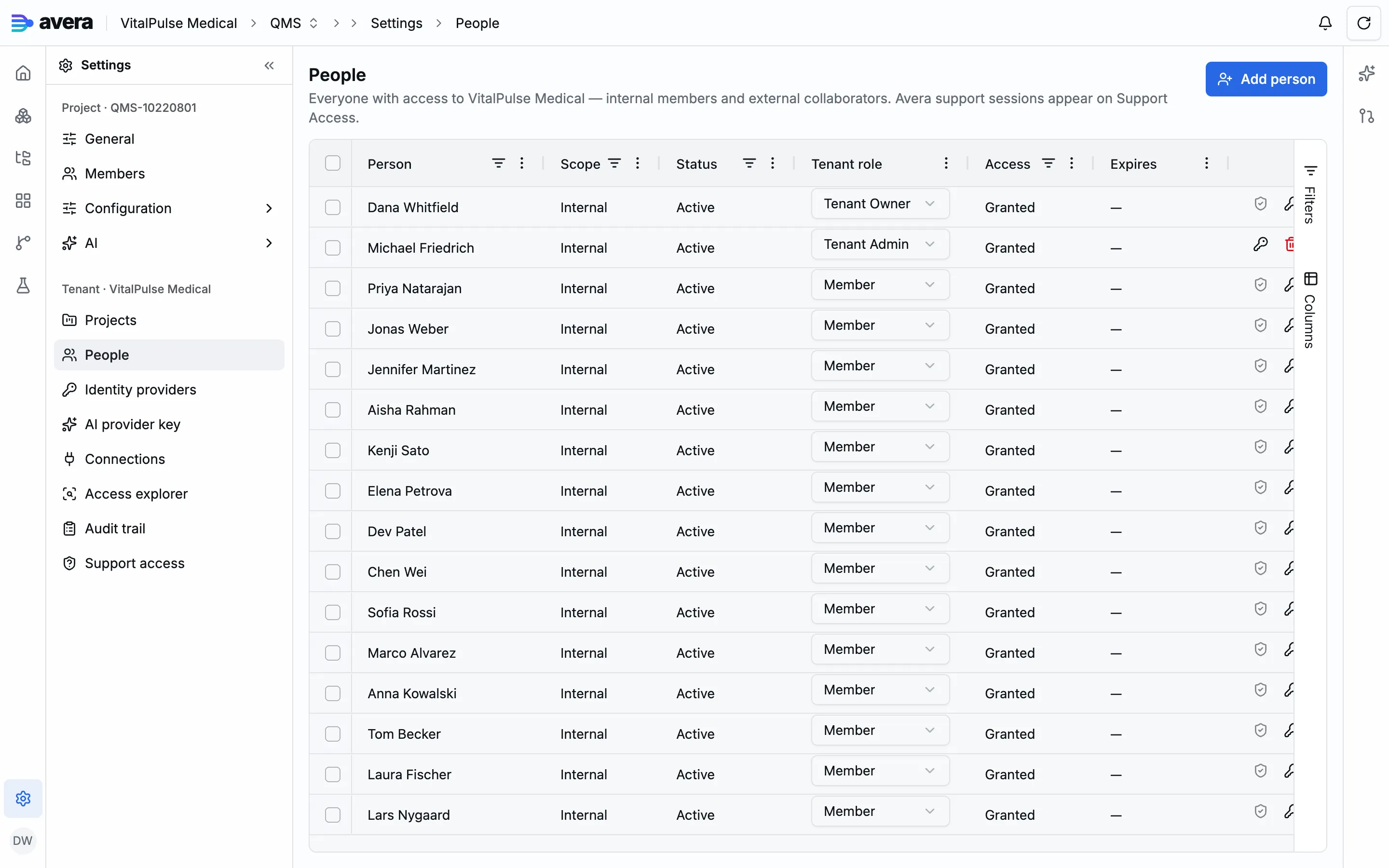
Project membership is the grant described above. A person with a participation and no grants is a member of the tenant who can reach no project content, which is how someone arriving through an SSO connection lands, waiting for an administrator.
A worked example
Section titled “A worked example”Making a field writable by one role in one state, from the case the quality management package ships: the complaint’s reportability fields are the vigilance officer’s to write.
- Open a change request under Configuration → Change requests.
- In Configuration → Items, open the Complaint item type, go to its Attributes tab and tick Restricted on Reportable. If that checkbox is disabled the type shares its lifecycle, and Split onto own lifecycle stages a dedicated one; here Complaint already sits alone on the Complaint lifecycle.
- In Configuration → Permissions, select the Complaint lifecycle. The States × verbs grid now carries a row for Attribute: Edit on Reportable, one per role.
- Click where the Vigilance Officer’s row meets the Reportability Assessment column. The sentence it stages: Vigilance Officer may Attribute: Edit the Reportable field of a complaint in Reportability Assessment.
- Leave the other columns denied.
- Promote, then open the Restricted fields tab of the access explorer: Reportable is listed with the one cell covering it.
The package goes wider, granting its four reportability fields to the vigilance officer in Received and Under Investigation as well.